
Sep 19, 2026
How to Add a Moving Banner and Scrolling Text Marquee Section in Shopify
A moving banner or scrolling text section is a great way to highlight important announcements, promotions, offers, or updates and grab users’ attention. Its continuous motion helps ensure key messages stay visible as visitors browse your Shopify store.
When to Use a Moving Banner or Scrolling Text
-
Display long text in a single line: Use scrolling text when you need to display a long announcement or message that cannot fit neatly within a standard announcement banner.
-
Grab users’ attention: Use a scrolling marquee or moving text animation to make important announcements, promotions, offers, or updates more eye-catching and engaging.
Things to Consider When Using Scrolling Text
-
Ensure smooth animation across devices
Scrolling or marquee animations can behave differently across devices and browsers. Poorly optimized CSS animations may cause issues such as text blinking, stuttering, or lag, especially on lower-powered devices. Make sure the animation is optimized for smooth and consistent performance.
-
Maintain a consistent scrolling speed
The scrolling speed can change depending on the length of the content. Longer text may appear to move slower, while shorter text may move faster. Handle different content lengths in the code to maintain a consistent and predictable animation speed.
In this article, we’ll learn how to:
- Add a moving banner at the top of your Shopify store with an option to make it sticky, so it remains visible as users scroll.
- Create a scrolling text marquee section that can be added to and embedded within different sections of your Shopify theme.

Step 1: Selecting Shopify app for creating this type of announcement bar
Shopify does not natively provide advanced moving banner or scrolling marquee features in most themes. In this article, we’ll use a Shopify App Store app to easily create and customize moving banners and marquee sections.
Adding these features manually with custom code can be tricky, as the animation needs to work smoothly across different browsers, screen sizes, and devices. An app can simplify the setup while helping ensure a more consistent experience for store visitors.
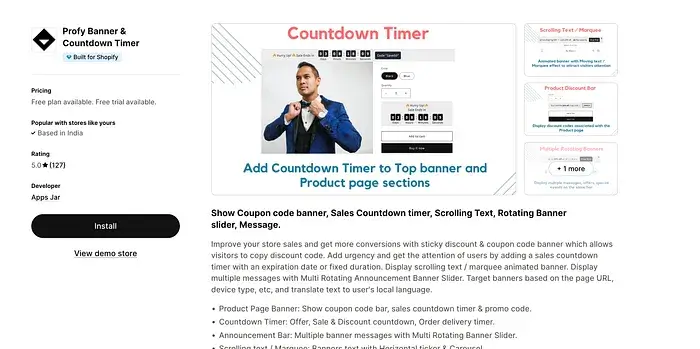
We will install the Profy Banner & Countdown Timer shopify app to easily add a sticky moving banner at the top of your page or place a scrolling text marquee section anywhere on your store without writing code.
Link: https://apps.shopify.com/profy-promo-bar
Step 2: Click on create new banner button
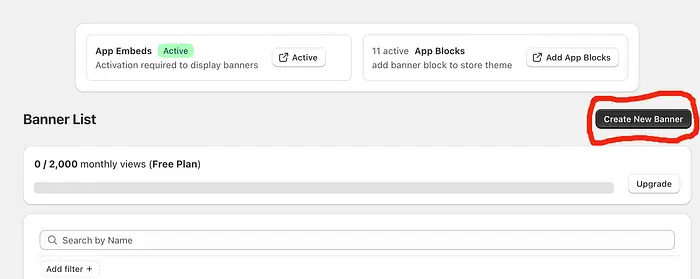
Go to the app’s home page and click Create New Banner.
Step 3: Selecting “Announcement bar -> Scrolling text”
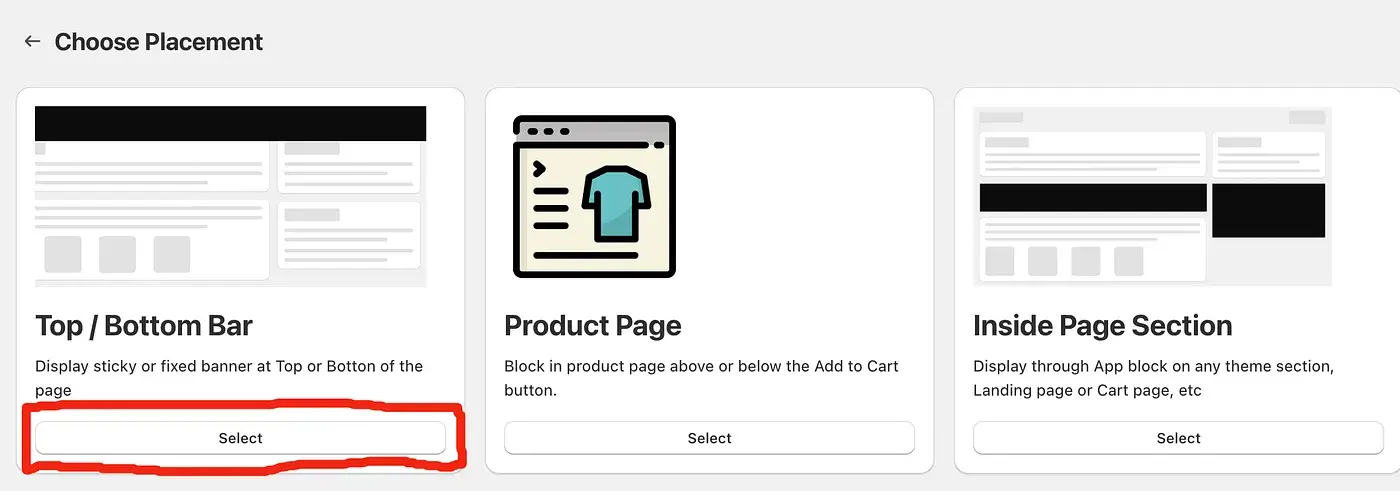
If you want to create a Moving Banner at the top or bottom of your store, select “Top / Bottom bar” placement.
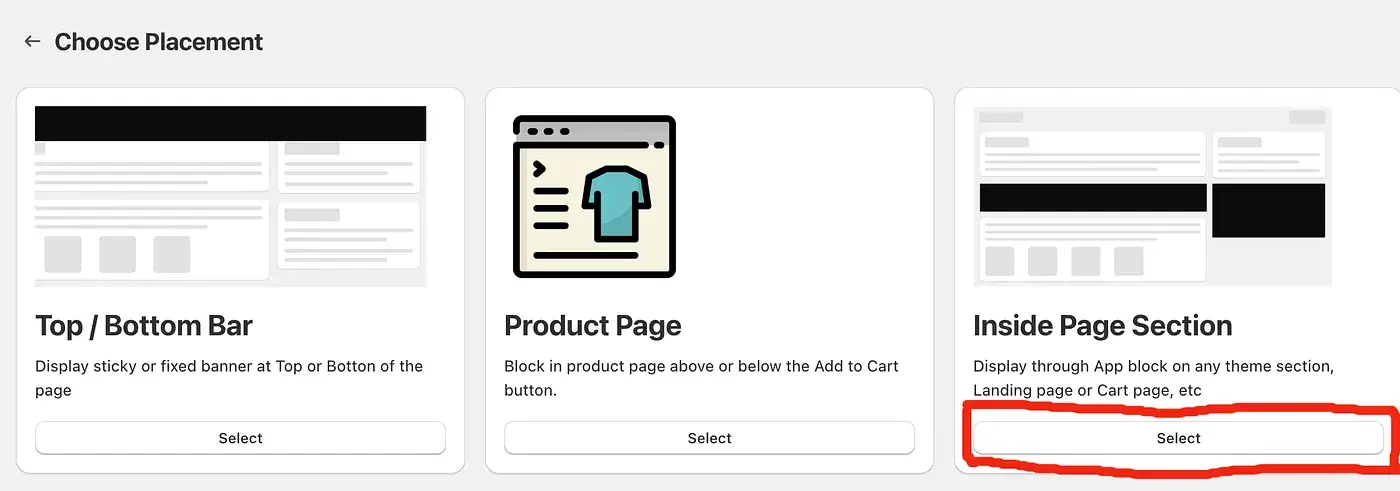
else if you want to create a Scrolling Text Marquee section within your page, select “Inside page section” placement.
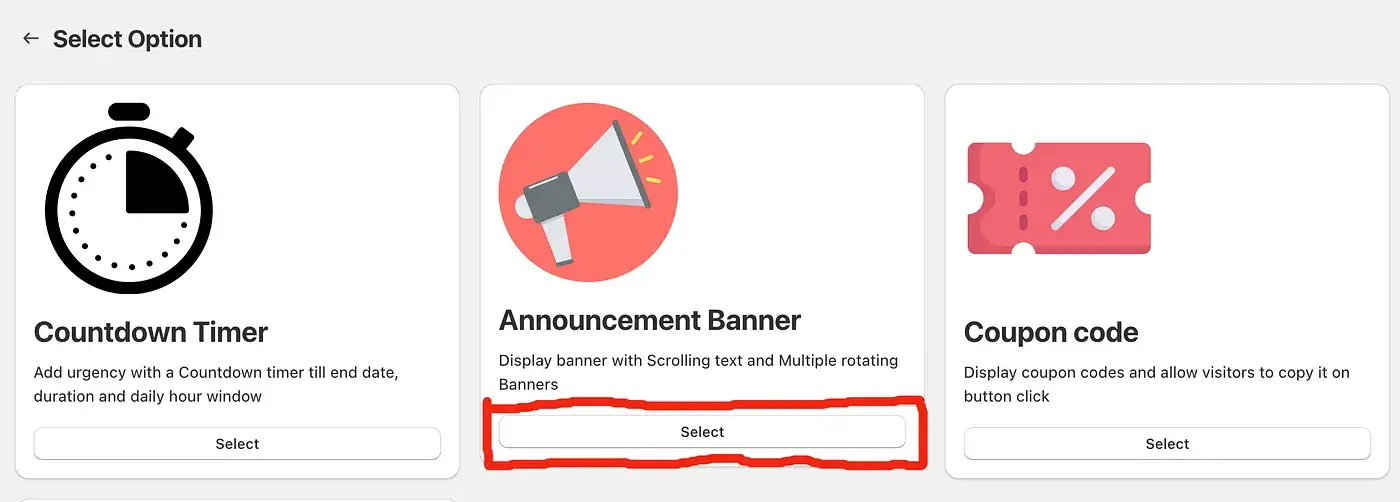
In the second step, select the “Announcement Banner” option.
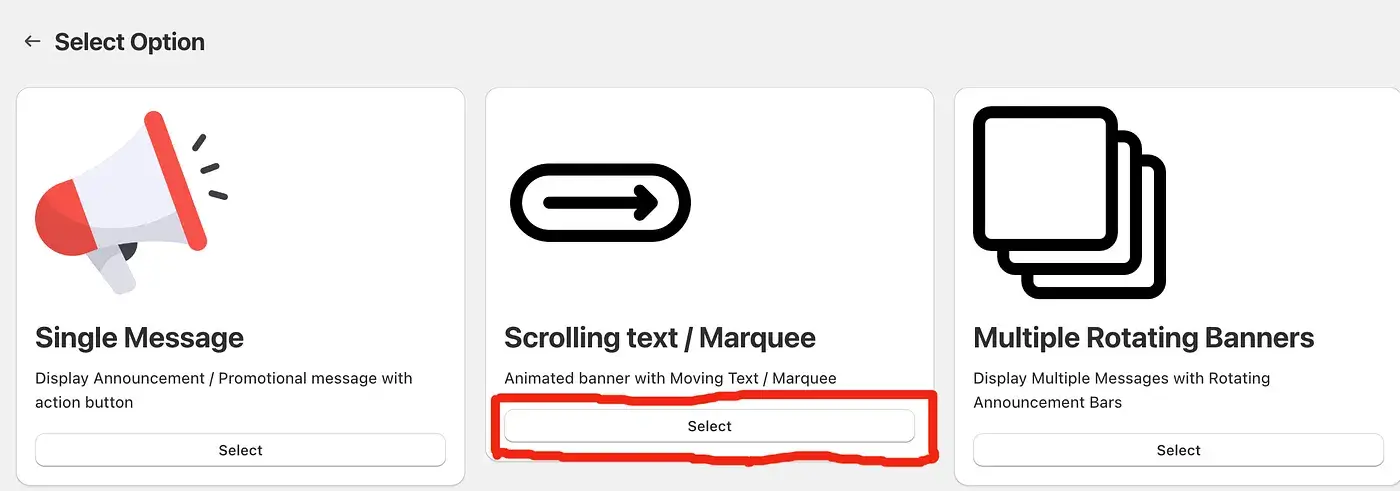
In the final, third step, select the “Scrolling text/marquee” option.
Step 4: Add your announcement message, link, and other banner settings
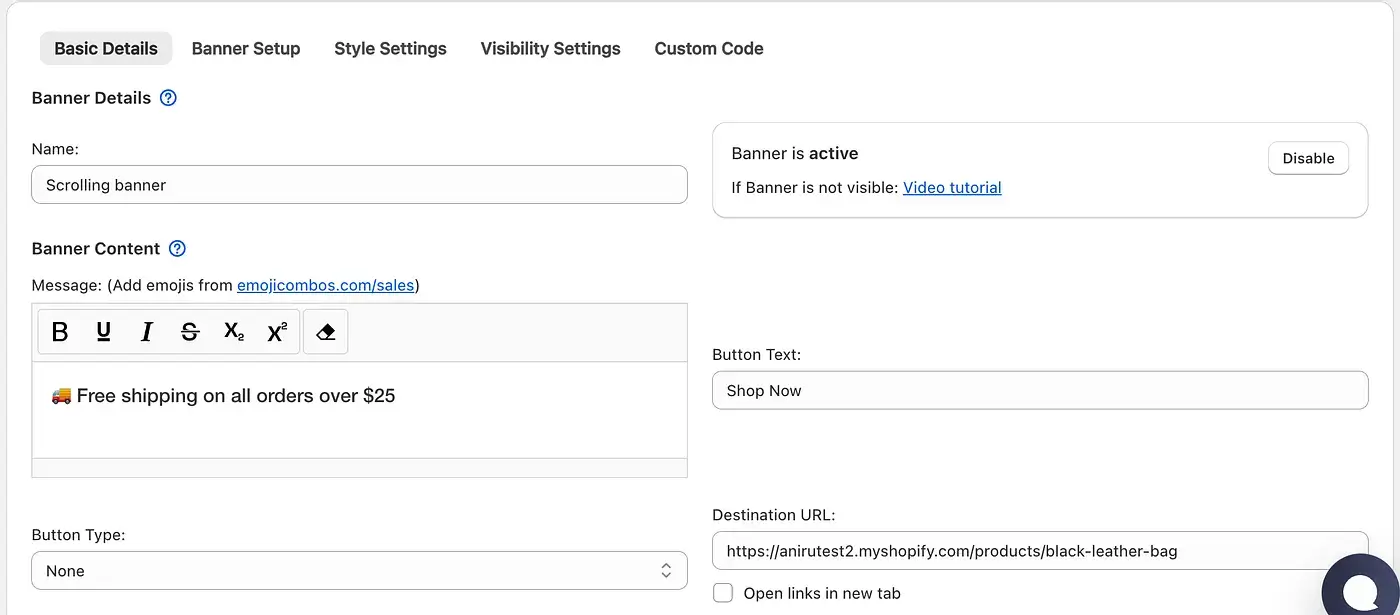
Enter the message you want to display in the Moving Banner / Scrolling Text section under Banner Content. You can also add a Destination URL where customers will be redirected when they click the banner or action button.
To display an action button alongside the scrolling text, select a Button Type. If no button type is selected, only the marquee text will be displayed.
Step 5: Adjust the Scrolling Text / Marquee Animation Speed

Adjust the Moving Banner animation speed from the Banner Setup tab. Set the speed anywhere between 1 and 100 to control how quickly the text scrolls across the banner.
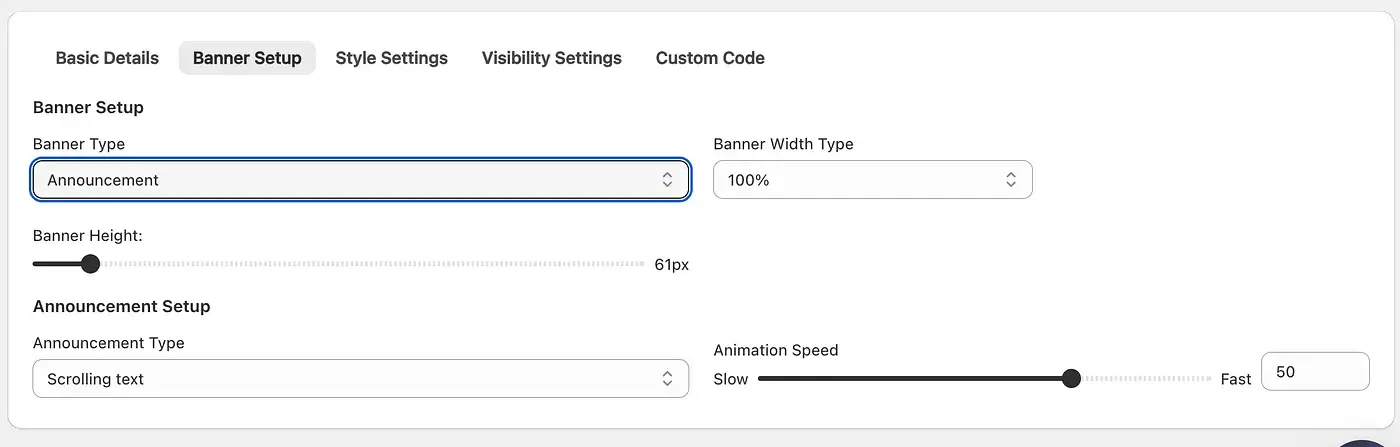
If you have selected the Scrolling Text / Marquee section, additional settings such as Banner Width and Banner Height will be available. The remaining animation speed and setup options will work the same way as the moving banner.
Step 7: Customize the Banner Design in the Style Settings Tab

The Style Settings tab allows you to fully customize the appearance of your scrolling text banner so it blends seamlessly with your store’s branding.
Key customization options include:
- Background: Adjust the background color or upload a custom background image.
- Typography: Select your preferred font family/type to match your store’s brand identity.
- Text Sizing & Styling: Fine-tune the font size, weight, and color for optimal readability.
Step 6: Add the Moving Banner to the Top of Your Store
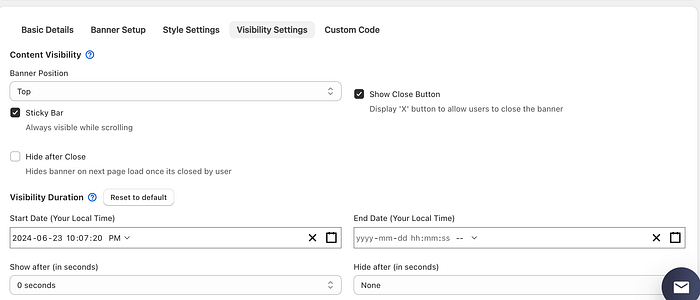
The Moving Banner will automatically appear at the top or bottom of the page, based on the position selected under Banner Position in the Visibility Settings.
You can also enable the Sticky Bar option to keep the banner visible while customers scroll through the page.
Finally, click the “Save” button to create the banner. The Moving Banner will be automatically added to your Shopify store based on the placement and visibility settings you selected.
Step 7: Add a Scrolling Text / Marquee Section Anywhere on the Page
After saving, the Scrolling Text / Marquee Section needs to be manually added to your store using a Shopify App Block.
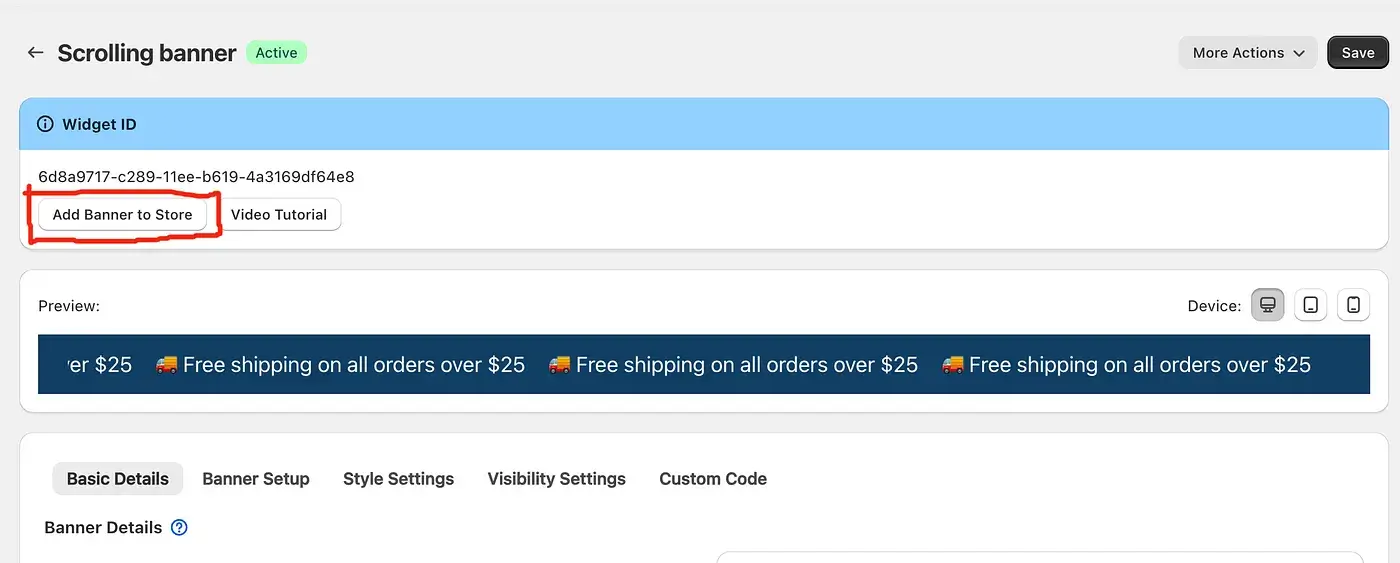
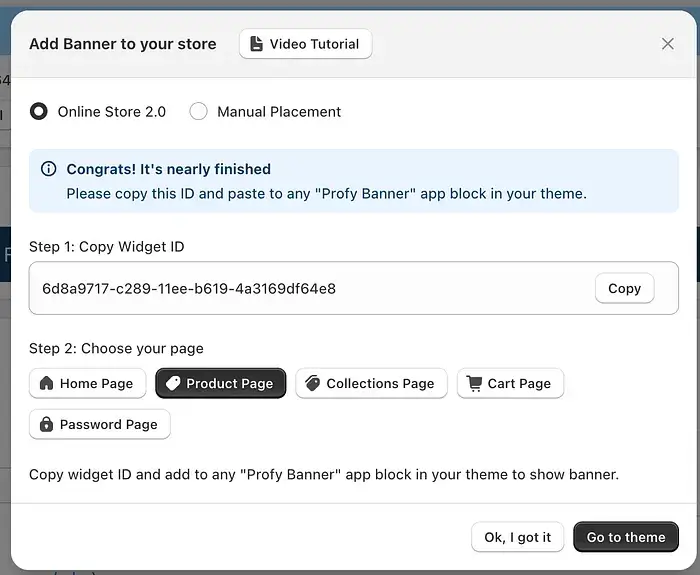
First, click “Add Banner to store”. A popup will appear with a Widget ID. Copy this Widget ID, then click “Go to theme” to open the Shopify theme editor.
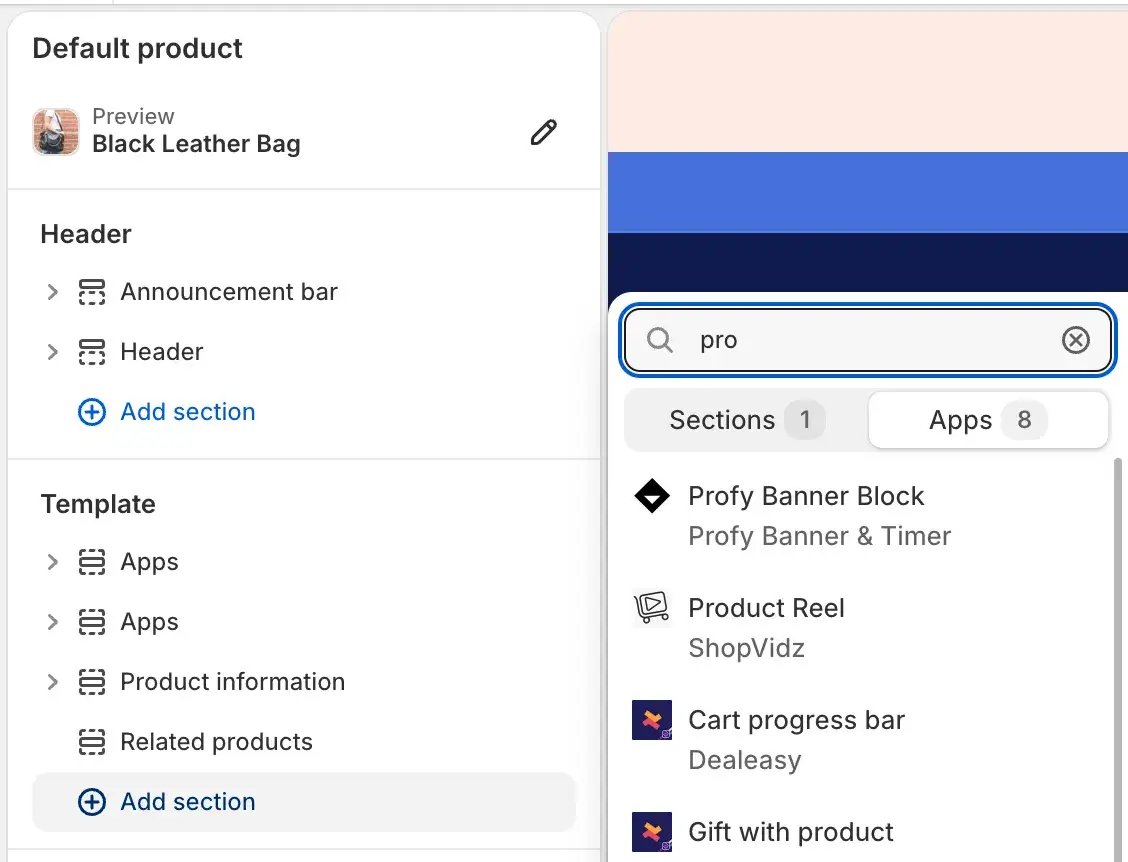
In the theme editor, click “Add section” and select “Profy Banner Block” from the Apps section to add the app block to your page.
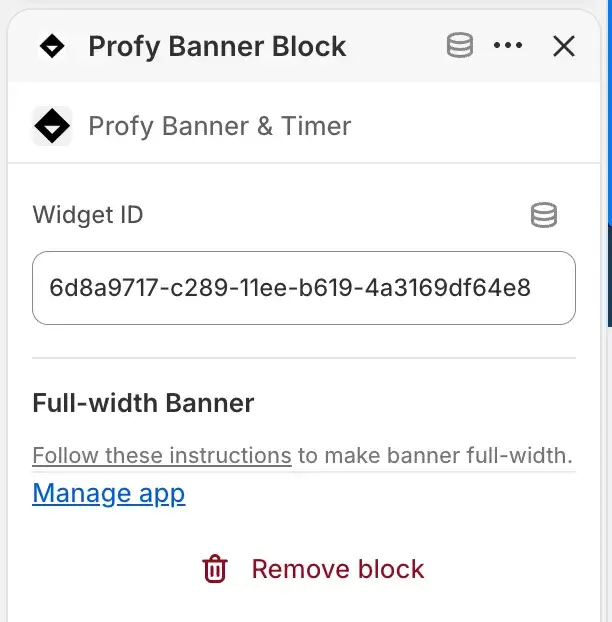
Once the app block is added, click on it and paste the Widget ID you copied earlier from the banner edit page. This will display the Scrolling Text / Marquee section on your store.
Final result
Finally, we have created a Moving Banner that is automatically added to the top of the store. We have also created a Scrolling Text / Marquee Section, which can be added anywhere in the theme using the Shopify App Block.