
Nov 1, 2026
How to Set Up Buy One Get One Free (BOGO) Deals on Shopify
Buy 1 Get 1 Free is one of the simplest types of Buy X Get Y promotions. Customers receive a free product as a reward when they purchase a qualifying item. The free gift can be either the same product or a different product of your choice.
Unlike quantity-based offers such as Buy 2 Get 1 Free, this promotion is easier for customers to understand and redeem, as they only need to purchase one qualifying item to unlock their free gift.
You can also explore our related articles to learn how to create Buy 2 Get 2 Free offers or Automatically add free gifts with purchase.
In this article, we’ll walk through how to create a Buy a Skateboard Get a Helmet Free discount and use promotional widgets to inform customers about the offer and help them easily claim their free gift.
Limitations of Offering “Buy 1, Get 1 Free” Natively in Shopify
Creating a Buy 1 Get 1 Free discount in Shopify is straightforward and follows the same process as creating other Buy X Get Y discounts. You can refer to Shopify’s official guide for step-by-step instructions.
However, running a Buy 1 Get 1 Free campaign using Shopify’s default functionality comes with several limitations:
- No offer promotion: Shopify doesn’t provide built-in tools to inform customers that a Buy 1 Get 1 Free offer is active while browsing your store.
- Manual gift addition: Even after customers purchase the qualifying product, they must manually find and add the free gift to their cart, making the offer less convenient to redeem.
- Limited offer visibility: Customers aren’t clearly informed about which products are eligible for the promotion or which free gifts they can claim.
- No immediate confirmation: Customers aren’t notified when the offer is successfully applied. They may only discover the discount when they reach the checkout page.
These limitations make it harder for customers to discover and redeem your Buy 1 Get 1 Free offer, potentially reducing participation and the overall effectiveness of your campaign.
Installing a Shopify App for “Buy 1, Get 1 Free” Offers
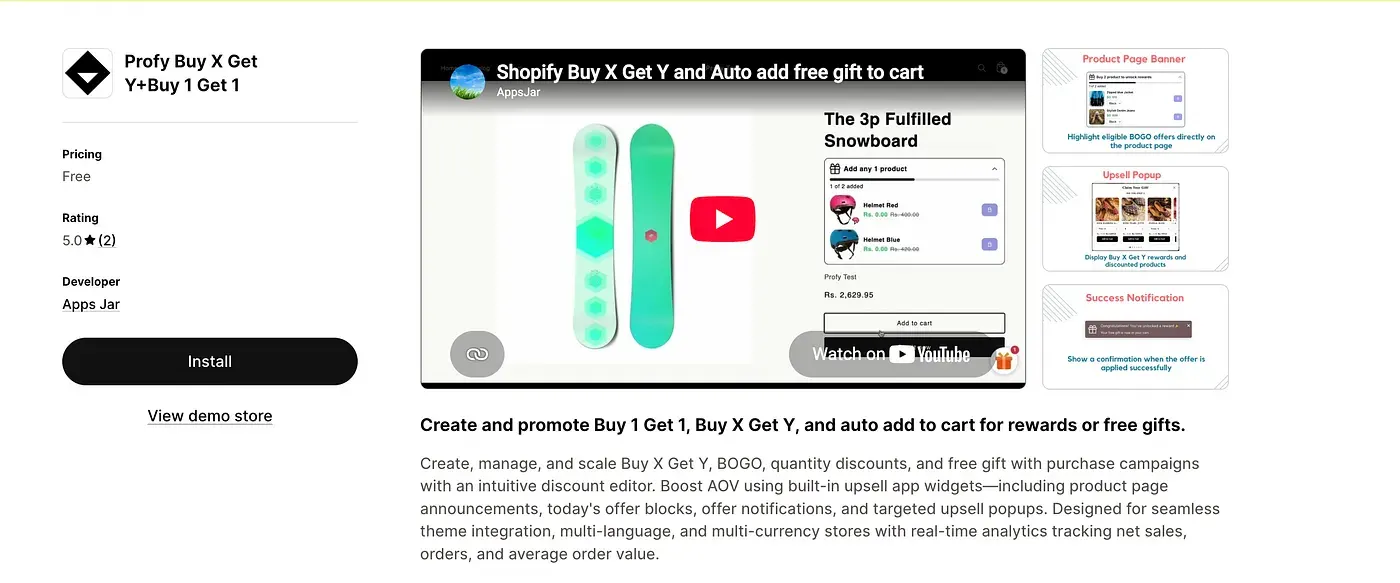
To overcome the limitations of Shopify’s default discount functionality, we’ll install the Profy Buy X Get Y+Buy 1 Get 1 Shopify app.
Link: https://apps.shopify.com/profy-bogo-free-gift-upsell
The app supports not only Buy 1 Get 1 Free promotions but also other types of Buy X Get Y offers, such as Buy 2 Get 1 Free, Buy 1 Get 20% Off, and other product-based and quantity-based discounts.
The app provides promotional widgets that inform customers about active Buy 1 Get 1 Free offers even before they add any products to their cart. Once customers add the qualifying product and satisfy the Buy condition, the widgets prompt them to select and add their free gift. Alternatively, the gift can be automatically added to the cart.
This makes it easier for customers to discover the promotion, understand how to qualify, and redeem their free gift, helping you get more value from your Buy 1 Get 1 Free campaign.
Creating a “Buy One, Get One Free” Offer
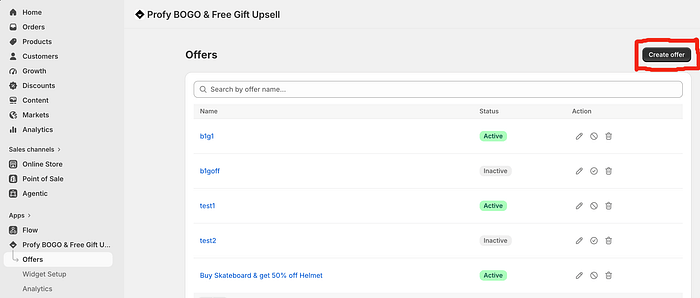
Navigate to the Offers page and click the Create Offer button to start setting up a new Buy 1 Get 1 Free discount.
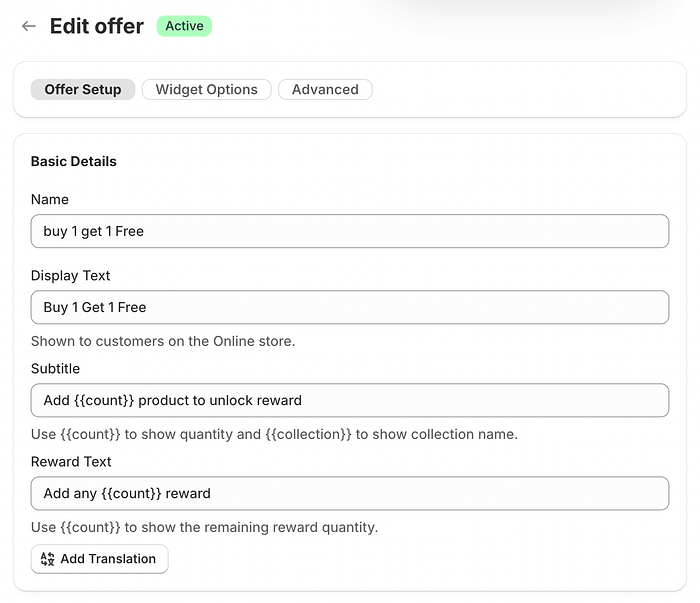
Under the Offer Setup section, enter a unique offer name for internal reference and add the Display Text, which will be shown to customers in the promotional widgets.
Use the Subtitle to explain the Buy 1 purchase requirement. Once customers satisfy this condition, the Reward Text is displayed to prompt them to select and add their free gift to the cart.
Enabling the Auto Add to Cart Option
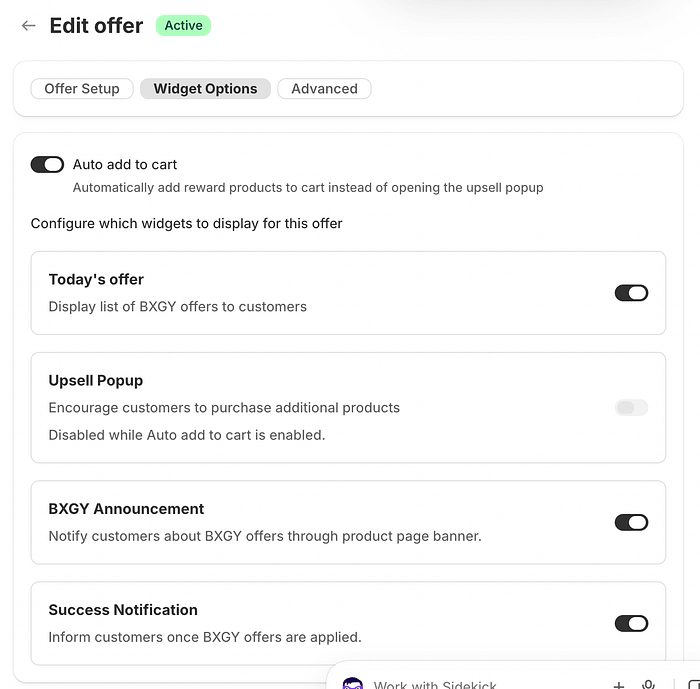
By default, the Upsell Popup is displayed to let customers choose their preferred free gift once they satisfy the Buy 1 condition.
Alternatively, you can enable the Auto Add to Cart feature to automatically add the free gift to the cart without displaying the popup or requiring customers to select it manually.
Informing Customers About the “Buy 1, Get 1 Free” Offer Before They Buy
It’s important to promote your Buy 1 Get 1 Free offer early in the customer’s shopping journey.
Highlighting the offer while customers are browsing can grab their attention, encourage them to explore the promotion, and motivate them to make a purchase they might not otherwise have considered.
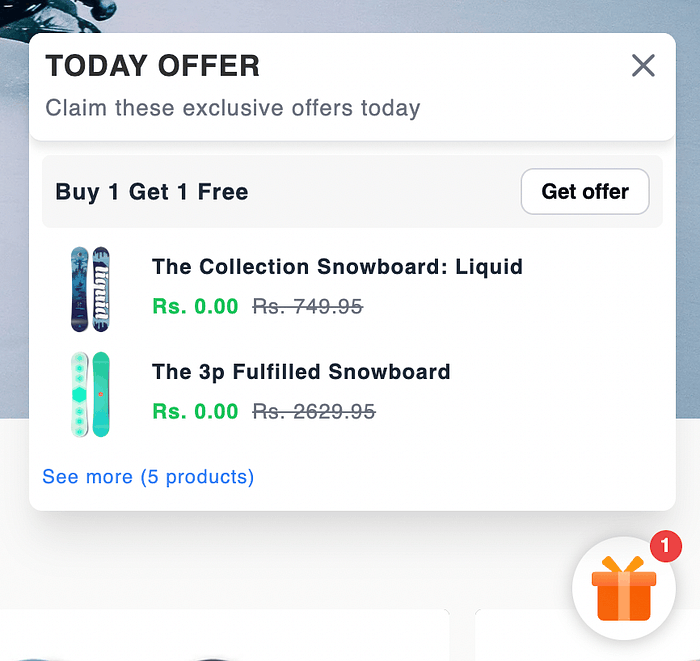
The product announcement widget provides customers with details of the Buy 1 Get 1 Free offer, along with a list of available free gift options. It also displays the original and discounted prices, helping customers understand the value of the promotion before making a purchase.
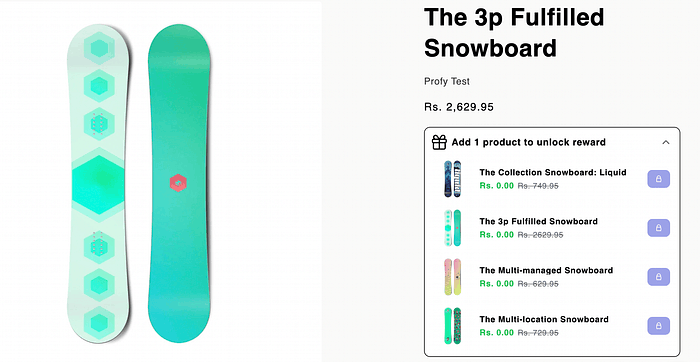
Prompting Customers to Select the Free Gift
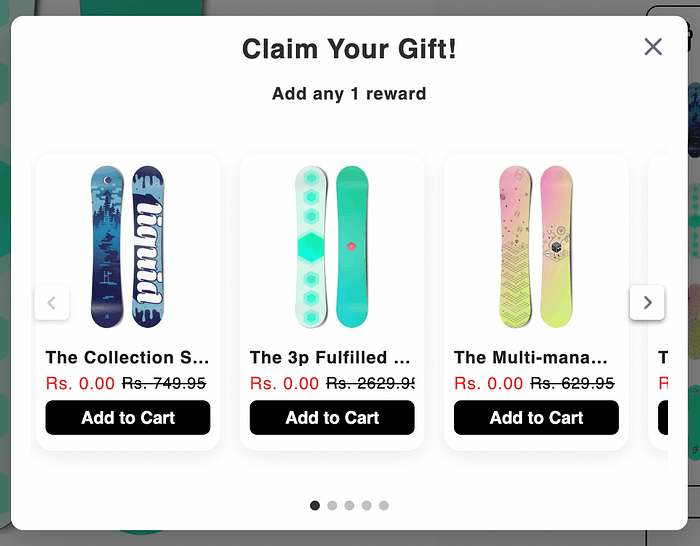
Once the Buy 1 condition is satisfied, the Upsell Popup is displayed, prompting customers to select their preferred free gift.
Alternatively, if Auto Add to Cart is enabled, the free gift is automatically added to the cart without displaying the popup or requiring customers to select it manually.
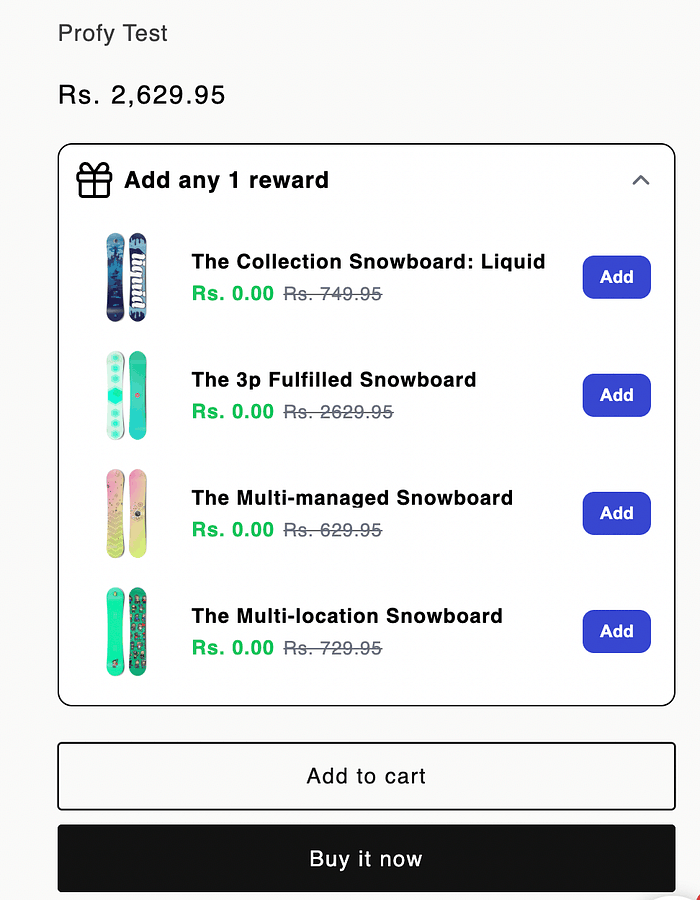
The product announcement widget also allows customers to select their free gift once the Buy 1 condition is satisfied. This gives customers the flexibility to claim their free gift either through the Upsell Popup or directly from the product announcement widget.
Notifying Customers When the “Buy 1, Get 1 Free” Offer Is Applied Successfully
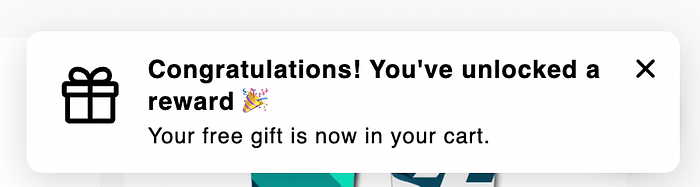
Once the free gift is added to the cart and the Buy 1 Get 1 Free discount is successfully applied, a success notification is displayed to confirm that the offer has been applied to order.
Final Result and Demo
The final result is a fully promoted Buy 1 Get 1 Free offer that customers can discover through the Today’s Offer and Product Announcement widgets while browsing your store.
Once the customer satisfies the Buy 1 condition, the Upsell Popup is displayed, prompting them to select their preferred free gift. Alternatively, if Auto Add to Cart is enabled, the free gift is automatically added to the cart without displaying the popup.
Finally, once the free gift is added and the Buy 1 Get 1 Free discount is successfully applied to the order, a Success Notification is displayed to confirm that the offer has been activated.